
 Accountants
Move client backlogs forward.
Prepare bank transactions across overdue periods before completing the accounts. Export CSV for your preferred bookkeeping workflow, or review the cashbook in SmartBank first.
New · Automatic PDF-to-CSV import
SmartBank automatically converts supported bank-statement PDFs to CSV during import. Built for accountants, bookkeepers and business owners catching up overdue cashbooks—or keeping everyday processing moving.
15-day free Windows trial · Unlimited imports · No per-statement conversion charge
AccountantsPrepare bank transactions across overdue periods before completing the accounts. Export CSV for your preferred bookkeeping workflow, or review the cashbook in SmartBank first.
 Bookkeepers
Import statements, reuse allocations, tidy descriptions, edit or split entries and reconcile the cashbook before exporting to the accounting system.
 Business owners
Use SmartBank yourself or work with your bookkeeper to catch up bank records, prepare useful data and keep routine processing on track.
Import the original bank PDF and export CSV data without accounting allocations. Import the file into your supported accounting package and finish the bookkeeping there.
See the PDF conversion demonstration ↗Review transactions, apply allocations, split entries where needed and reconcile in SmartBank. Export the prepared transactions in the format your accounting package requires.
Explore the SmartBank tutorials ↗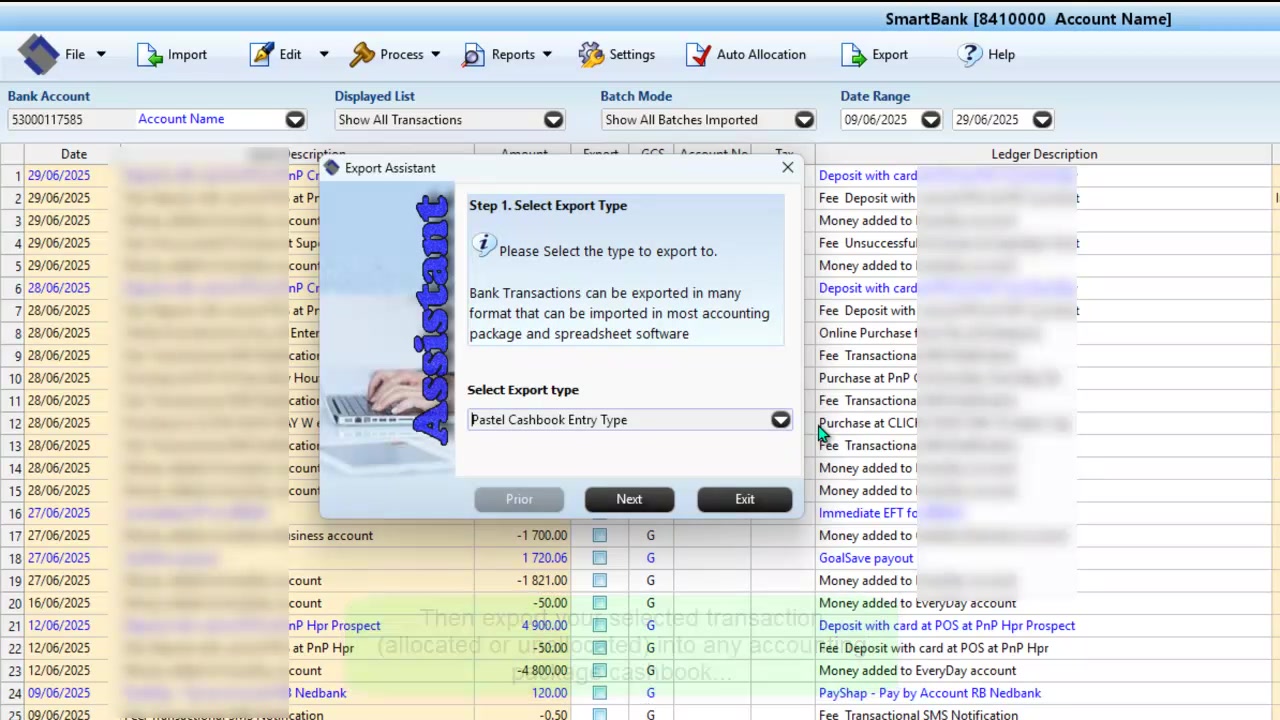
Use original PDFs downloaded from your bank. Scans, photographs and image-only PDFs are not supported. Supported password-protected statements can be imported. Confirm your bank layout and accounting-package format with David.
Connect the bank data to the accounts
SmartBank works offline on Windows and prepares bank transactions for supported desktop and cloud accounting workflows. Export and import methods depend on your accounting package, version and setup.
Already have CSV, OFX or OFC bank files? SmartBank can import supported bank-downloaded files too. Its PDF conversion produces CSV transaction data.

SmartBank is useful for both historical catch-up work and routine cashbook processing. Total Accounting Solutions can help scope the bank-data preparation, accounting-package setup, reconciliation or training you need. If the project includes bookkeeping, tax or reporting, David can coordinate the accounting engagement through Smarter Accounting.
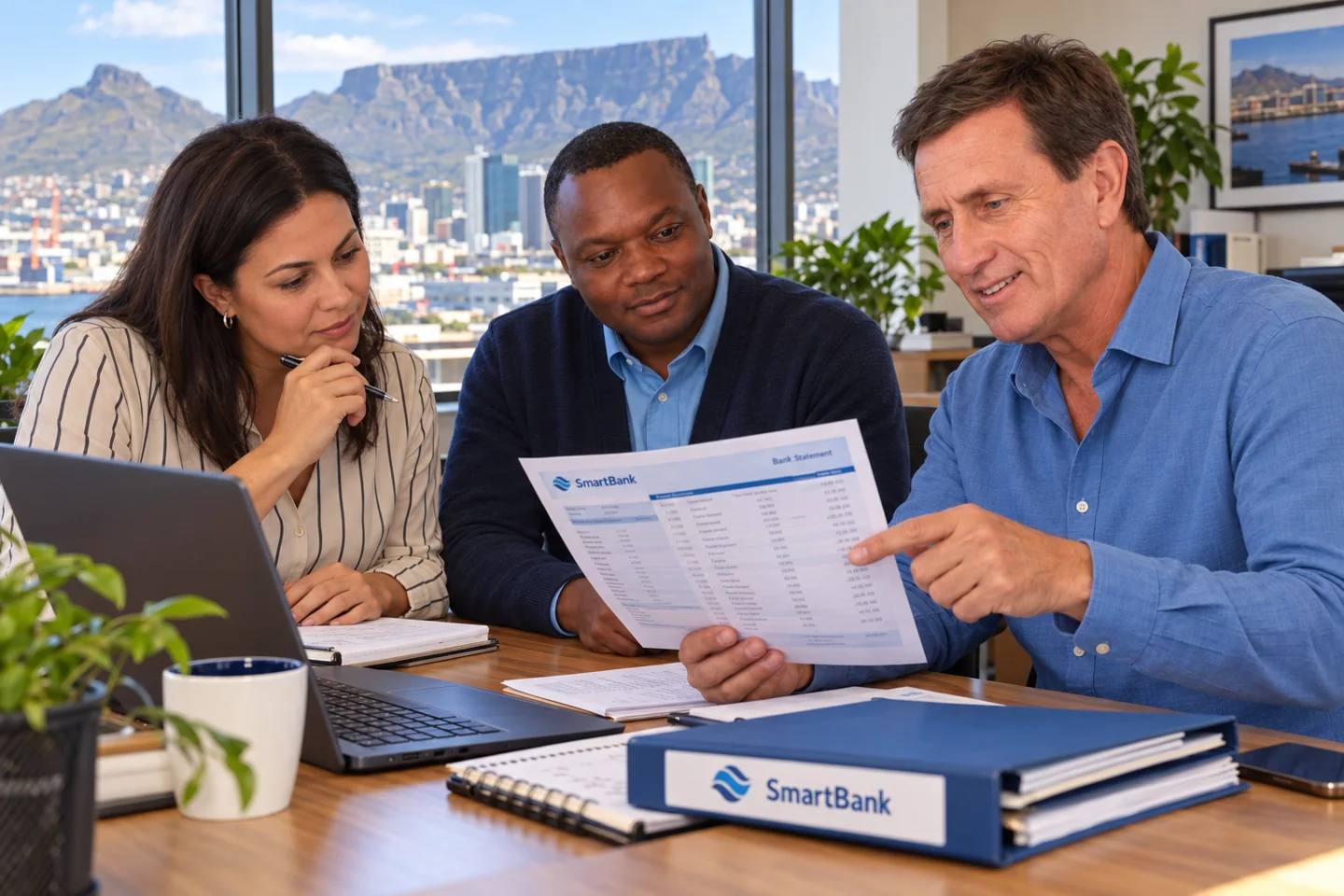
SmartBank was created by professional accountant David Hartley and software developer Sylvain Ntumba. Automatic PDF conversion is now part of the product’s bank statement import workflow.
Accountants, bookkeepers and business owners who need to catch up overdue cashbooks or reduce routine bank transaction capture. It is especially useful when the records are bank-issued PDF statements rather than ready-to-import transaction files.
Import an original supported PDF statement downloaded from your bank. SmartBank converts it to CSV transaction data automatically during import. You can export the data immediately or allocate and reconcile the transactions before exporting.
Yes. Export CSV transaction data without accounting allocations and finish the bookkeeping in your accounting package. Alternatively, allocate and reconcile in SmartBank before exporting the prepared cashbook.
SmartBank supports workflows for Sage Pastel Partner and Xpress, Sage Accounting (Sage One), Xero and OSFinancials. Export methods depend on the package, version and setup. Confirm the required file format before importing into your accounting package.
Use the original bank-issued PDF downloaded directly from your bank. Scans, photographs and image-only PDFs are not supported. Supported password-protected PDFs can be imported. Compatibility depends on the bank and statement layout.
New users can try SmartBank for Windows free for 15 days. SmartBank includes unlimited monthly bank-statement imports with no per-statement PDF conversion charge. Existing users receive the PDF import feature at no additional charge; contact David for the current update.
SmartBank speeds up bank data preparation. Transactions, allocations, supporting documents and balances still need review. You can use the software yourself or ask Total Accounting Solutions to scope conversion, reconciliation and catch-up support.
 Data preparation
Help with conversion, transaction review, reconciliation and accounting import files.
Discuss conversion support → Software
Get the accounting package ready to receive the prepared transactions.
Explore system support → Catch-up accounting
Scope overdue bookkeeping, accounting, tax and reporting with David.
Explore accounting services →